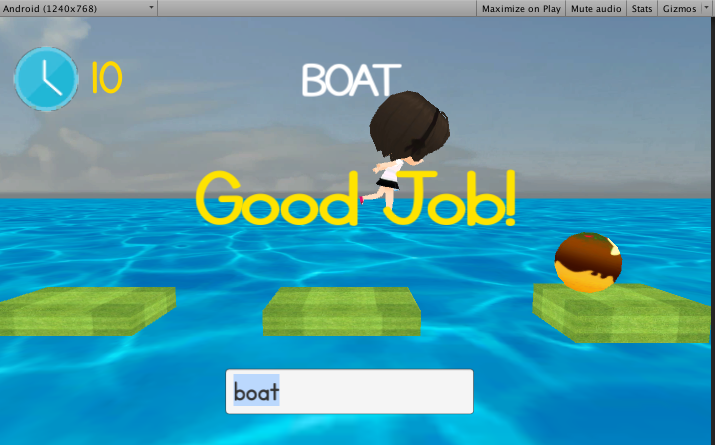
บทเรียนต่อเนื่องการพัฒนาเกมฝึกพิมพ์ภาษาอังกฤษ Typing Game บน Unity กับตัวอย่างง่ายๆ ครับ
จากบทเรียนก่อนหน้านี้ “เขียนเกมฝึกพิมพ์ภาษาอังกฤษ Typing Game ด้วย Unity ตอนที่ 1” เราจะได้ระบบต่อไปนี้มาแล้ว
- ระบบสุ่มคำ และตรวจสอบคำถูกผิด
- ระบบจับเวลา 10 วินาที
- ระบบเงื่อนไขบังคับตัวละครกระโดดไปข้างหน้าเมื่อมีบางอย่างเป็น True
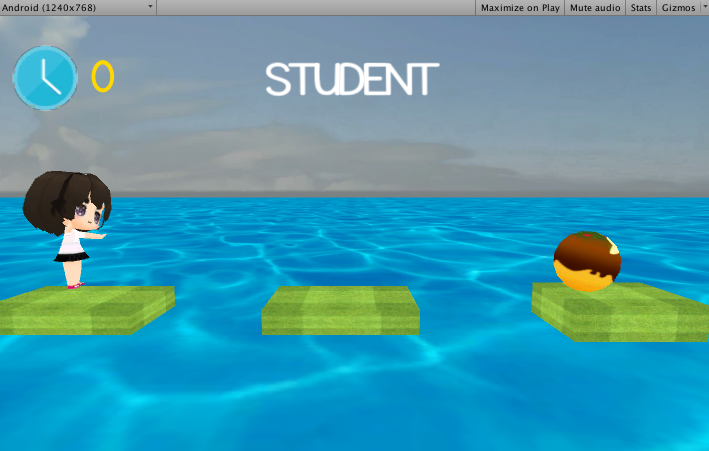
ไปที่ Hierarchy ทำการเพิ่ม Text เข้าไปใน Canvas ทั้งหมด 3 ตัวเปลี่ยนชื่อเป็น “TypeCorrect”, “TypeWrong” และ “WinnerText”

โดยตกแต่ง TypeCorrect ให้เป็นตัวอักษรสีเหลืองพิมพ์ว่า “Good Job!” ใส่ Scrpt C# ว่า “pass_message.cs” ครับ

โดย Script “pass_message.cs” นั้นประกอบด้วยฟังก์ชันต่อไปนี้
using UnityEngine;
using System.Collections;
using UnityEngine.UI;
using UnityEngine.EventSystems;

public class pass_message : MonoBehaviour {
	Text passText;
	void Start () {
		passText = GetComponent<Text>();
		passText.GetComponent<Text>().enabled = false;
	}
}
ทำการซ่อนมันไว้ก่อนครับ
passText.GetComponent<Text>().enabled = false;
ใส่ Tag ให้กับมันเล็กน้อยครับว่า “TypeCorrect”

เช่นกันไปที่ TypeWrong กำหนดค่าเป็นสีแดงพิมพ์ว่า “Oh No!” ใส่ Script ชื่อว่า “bad_message.cs”
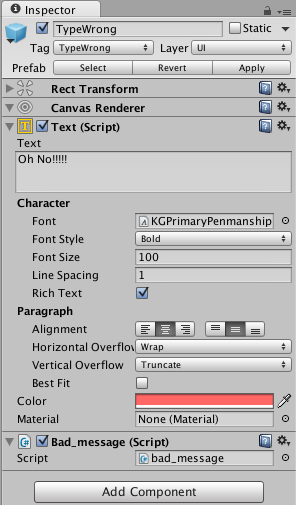
ไฟล์ bad_message.cs มีฟังก์ชันดังนี้ (ซ่อนมันไว้เช่นกัน)
using UnityEngine;
using System.Collections;
using UnityEngine.UI;
using UnityEngine.EventSystems;
public class bad_message : MonoBehaviour {
	Text badText;
	void Start () {
		badText = GetComponent<Text>();
		badText.GetComponent<Text>().enabled = false;
	}

}
กำหนด tag ให้กับมันว่า “TypeWrong”

ของ WinnerText ก็กำหนดข้อความตอน ชนะเกมไว้ครับ

ใส่ Script C# ชื่อว่า winnerText.cs
using UnityEngine;
using System.Collections;
using UnityEngine.UI;
using UnityEngine.EventSystems;

public class winnerText : MonoBehaviour {
	Text winner_txt;
	public GameSystem system;
	void Start () {
		if(system ==null){
			GameObject _system = GameObject.FindGameObjectWithTag("GameSystem") as GameObject;
			system = _system.GetComponent<GameSystem>();
		}
		winner_txt = GetComponent<Text>();
		winner_txt.GetComponent<Text>().enabled = false;
	}

	void Update(){
		if (system.winnerGame == true) {
			winner_txt.GetComponent<Text>().enabled = true;
		}
	}
}
ต่างกันตรงที่ว่า ถ้า GameSystem ส่งตัวแปร winnerGame ว่า True มาเมื่อไหร่ ข้อความนี้จะปรากฏครับว่าผ่านด่านแล้ว
void Update(){
		if (system.winnerGame == true) {
			winner_txt.GetComponent<Text>().enabled = true;
}
ฉากที่ปรากฏจะเป็นดังนี้ครับ

แต่ถ้า Play เกมดูมันจะหายไปครับเพราะเราซ่อนมันไว้นั่นเอง
ต่อมาไปที่ Canvas ครับทำการสร้าง Input Field เข้ามาใน Canvas

จะปรากฏบน Hierarchy ดังนี้

ตั้งค่า ขนาดของ InputField ให้สวยงามเหมาะสมครับ
เขียน Script C# ขึ้นมาใหม่ใน InputField ว่า “InputPlay.cs” ใส่ฟังก์ชันดังนี้
using UnityEngine;
using System.Collections;
using UnityEngine.UI;
using UnityEngine.EventSystems;

public class InputPlay : MonoBehaviour {
	public GameSystem system;
	public pass_message pass_msg;
	public bad_message bad_msg;

	void Start () {
		if(system ==null){
			GameObject _system = GameObject.FindGameObjectWithTag("GameSystem") as GameObject;
			system = _system.GetComponent<GameSystem>();
		}
		if(pass_msg ==null){
			GameObject _TypeCorrect = GameObject.FindGameObjectWithTag("TypeCorrect") as GameObject;
			pass_msg = _TypeCorrect.GetComponent<pass_message>();
		}
		if(bad_msg ==null){
			GameObject _TypeWrong = GameObject.FindGameObjectWithTag("TypeWrong") as GameObject;
			bad_msg = _TypeWrong.GetComponent<bad_message>();
		}
	}
	public void FixedUpdate(){
		var input = gameObject.GetComponent<InputField>();
		input.ActivateInputField();

		var se= new InputField.SubmitEvent();
		se.AddListener(SubmitName);
		input.onEndEdit = se;
	}

	private void SubmitName(string arg0)
	{
		if (arg0.ToUpper() == system.randomResult) {
			pass_msg.GetComponent<Text>().enabled = true;
			bad_msg.GetComponent<Text>().enabled = false;
			system.CorrectAnswer();
			StartCoroutine(clearScreen());
		} else {
			bad_msg.GetComponent<Text>().enabled = true;
			pass_msg.GetComponent<Text>().enabled = false;
			StartCoroutine(clearScreen());
		}
	}

	public IEnumerator clearScreen(){

			yield return new WaitForSeconds(.4f);
			pass_msg.GetComponent<Text>().enabled = false;
			bad_msg.GetComponent<Text>().enabled = false;
			system.RandomString ();

	}
}
ใน InputField ที่มี C# ไฟล์ InputPlay.cs นี้จะมีการเรียก OOP เพื่อควบคุมอยู่ 3 ตัวคือ GameSystem ในเรื่องของการเล่น และ TypeCorrect และ TypeWrong ในเรื่องของการแสดงเมื่อพิมพ์ถูก และ พิมพ์ผิด
public GameSystem system;
public pass_message pass_msg;
public bad_message bad_msg;
เรียกดังนี้ครับ
if(system ==null){
			GameObject _system = GameObject.FindGameObjectWithTag("GameSystem") as GameObject;
			system = _system.GetComponent<GameSystem>();
		}
		if(pass_msg ==null){
			GameObject _TypeCorrect = GameObject.FindGameObjectWithTag("TypeCorrect") as GameObject;
			pass_msg = _TypeCorrect.GetComponent<pass_message>();
		}
		if(bad_msg ==null){
			GameObject _TypeWrong = GameObject.FindGameObjectWithTag("TypeWrong") as GameObject;
			bad_msg = _TypeWrong.GetComponent<bad_message>();
		}
เริ่มเกมให้ระบบมีการ Focus มาที่ Input Field ทันทีครับ เมื่อพิมพ์เสร็จกด Enter ก็จะเป็นการเช็คว่าพิมพ์ถูกหรือผิด ถ้าถูก GameSystem จะเรียกฟังก์ชัน CorrectAnswer() ซึ่งจะเชื่อมโยงไปที่ Player ให้กระโดดไปข้างหน้า และ TimerText จะทำการนับเลข 10 วินาทีใหม่ พร้อมกับ Random Array ศัพท์ใหม่ออกมา
public void FixedUpdate(){
		var input = gameObject.GetComponent<InputField>();
		input.ActivateInputField();

		var se= new InputField.SubmitEvent();
		se.AddListener(SubmitName);
		input.onEndEdit = se;
	}
กด Enter เมื่อพิมพ์เสร็จใช้
se.AddListener(SubmitName);
ระบบจะทำการเช็คศัพท์ว่าตรงกับ ศัพท์ที่สุ่มจาก Array ไหมที่
private void SubmitName(string arg0)
	{
		if (arg0.ToUpper() == system.randomResult) {
			pass_msg.GetComponent<Text>().enabled = true;
			bad_msg.GetComponent<Text>().enabled = false;
			system.CorrectAnswer();
			StartCoroutine(clearScreen());
		} else {
			bad_msg.GetComponent<Text>().enabled = true;
			pass_msg.GetComponent<Text>().enabled = false;
			StartCoroutine(clearScreen());
		}
	}
เป็นอันเสร็จเรียบร้อยครับ เกมสมบูรณ์แล้ว ทดสอบการเล่น


แบบวีดีโอก็ตามนี้ครับ
สามารถเอาเป็นแนวทาง หรือหาสนใจ Source Code (Asset ฟรีหมด แค่ เรื่องของ Code และ logic game play เท่านั้นที่คิดขึ้นมาเอง)
ที่นี่: http://bit.ly/TypingTemplate