
บทเรียนต่อเนื่องสำหรับสร้าง Comic Book ด้วย Firebase บน Android เพื่อสร้างแอปพลิเคชันอ่านหนังสือ PDF อย่างง่ายและจัดการด้วย Firebase ตอนที่ 2
ศึกษาบทความก่อนหน้า: Android Studio กับการทำระบบ Bookshelf ร่วมกับ Firebase เบื้องต้น ตอนที่ 1
สำหรับคนที่ไม่อยากโหลด PDF แต่มีภาพ Image หลายๆ ภาพให้ไปที่บทเรียนที่ 3 เลยข้ามบทที่ 2 ไป
บทเรียนตอนที่ 3: Android Studio กับการทำระบบ Bookshelf ร่วมกับ Firebase เบื้องต้น ตอนที่ 3
เราจะได้หน้าจอการทำงานของแอปพลิเคชันเราดังนี้:
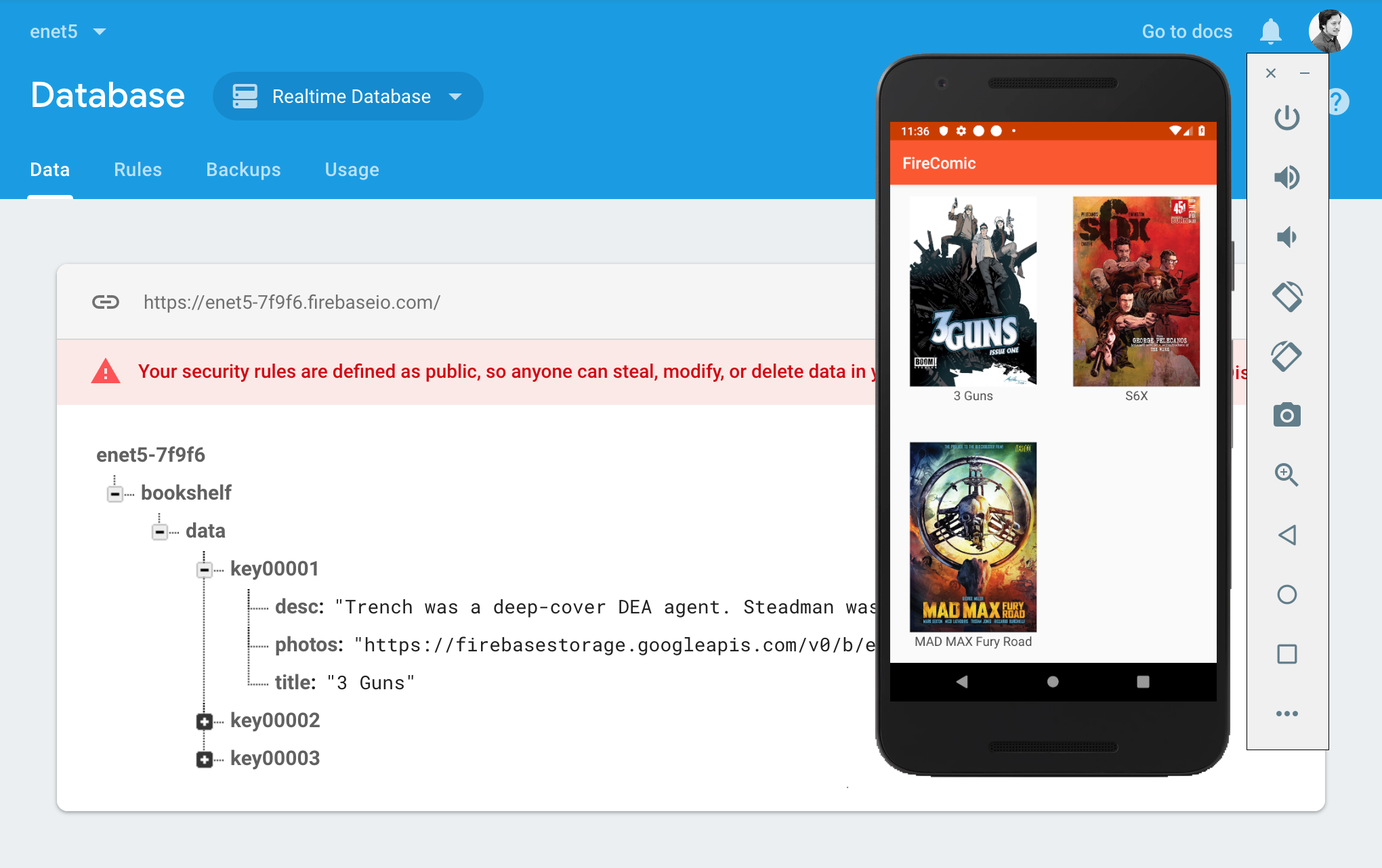
ขั้นตอนต่อมาให้เราเตรียมไฟล์ PDF การ์ตูนของเราไม่เกิน 65 mb นะครับ อัพโหลดขึ้นไปบน Storage ของ Firebase หลังจากนั้นให้เปลี่ยนโครงสร้างของ Real-Time Database เราใหม่ให้เป็นดังนี้:
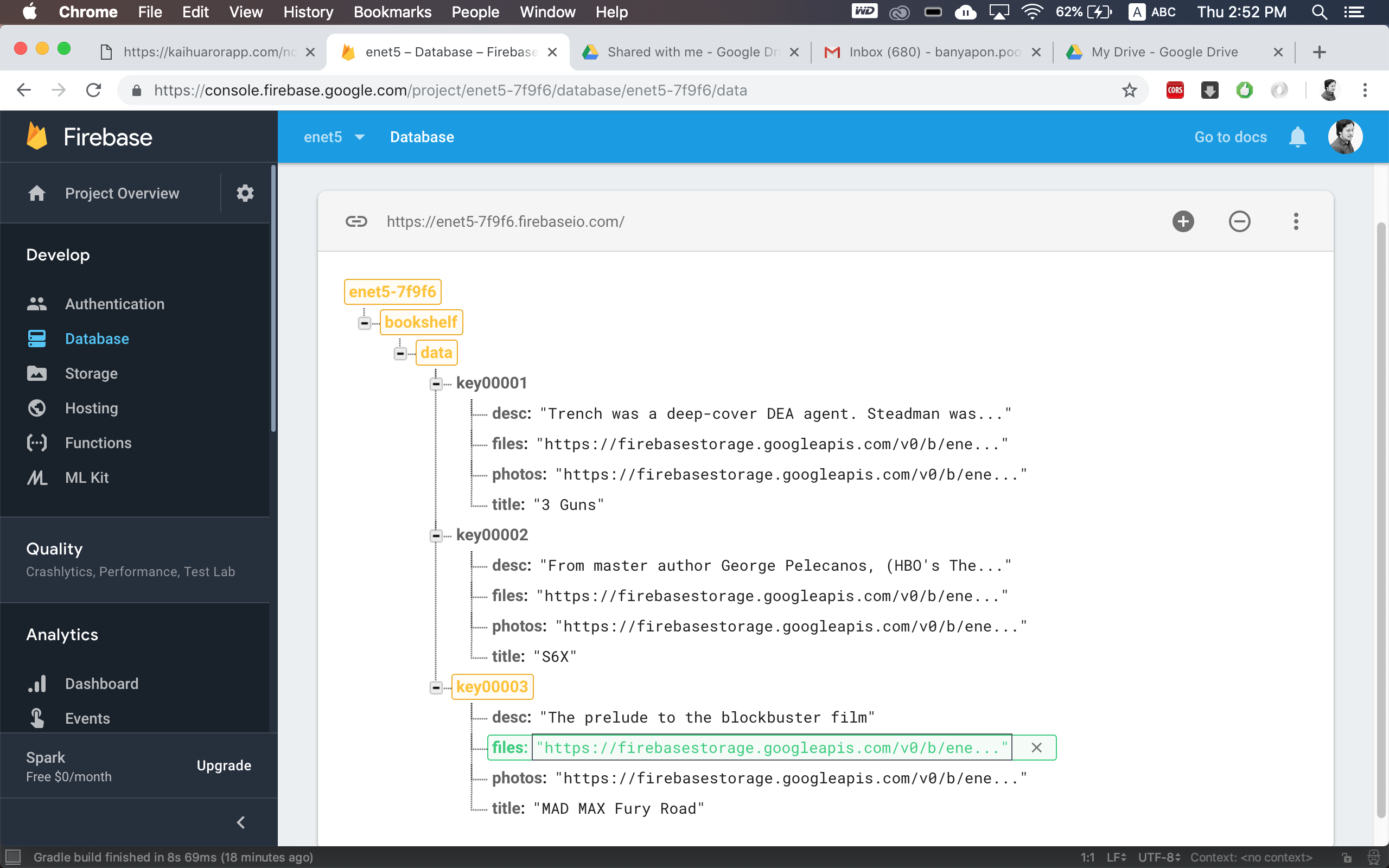
คือการนำ Download Location ของ Firebase Storage ไฟล์ PDF ไปวางที่ key ตัวใหม่ตั้งชื่อว่า “files” ส่วนโครงสร้างของ JSON จะเป็นดังนี้:
https://enet5-7f9f6.firebaseio.com/bookshelf.json
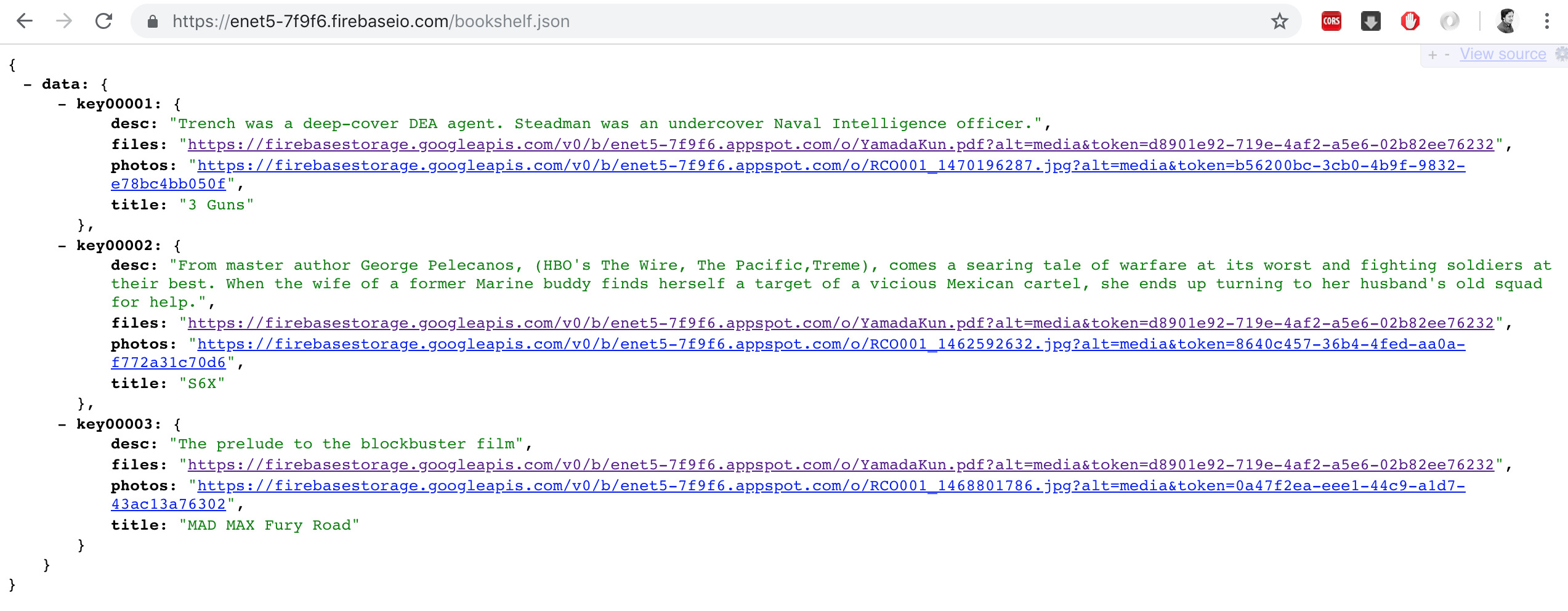
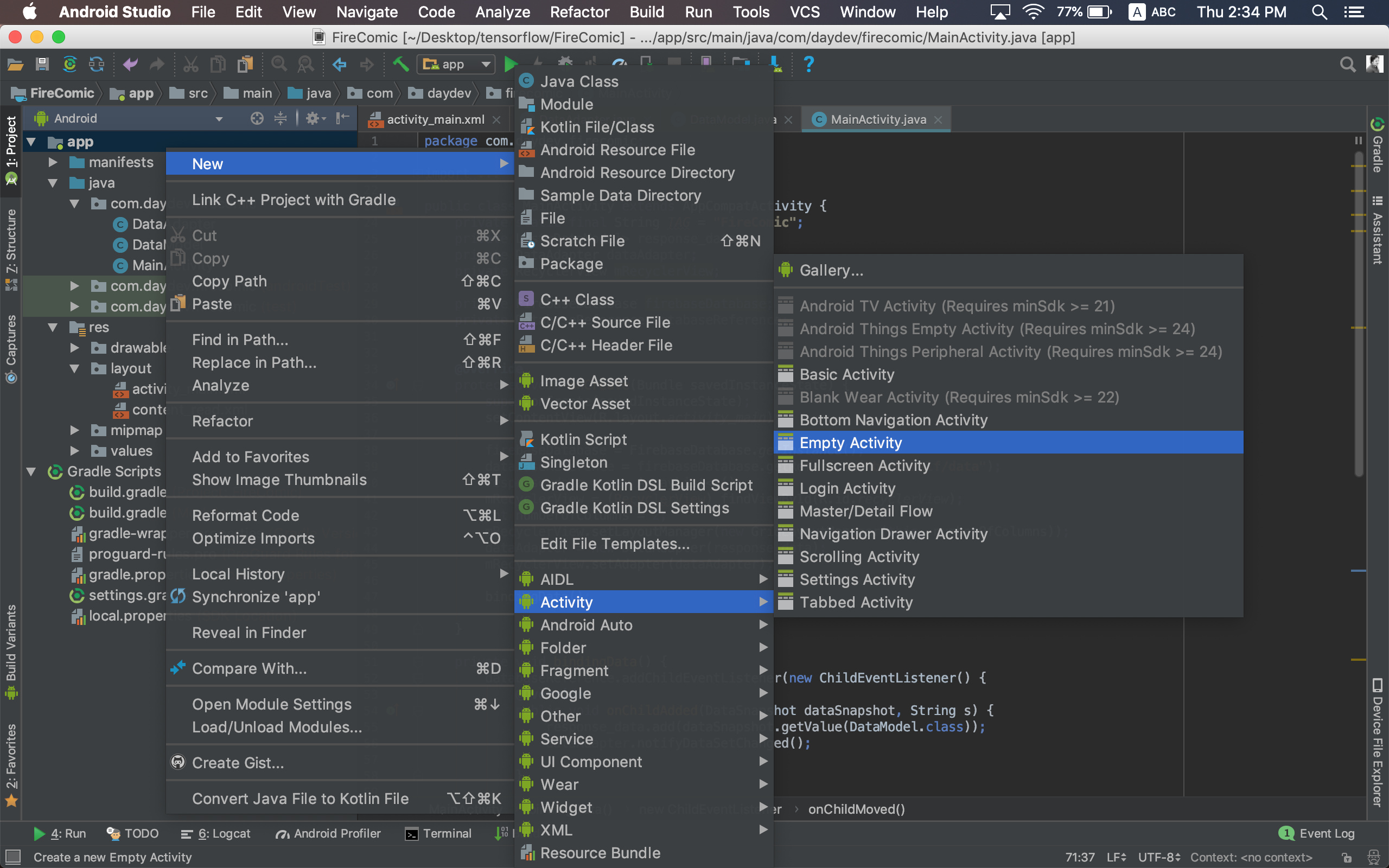
แปลว่าเราจะมี PDF อยู่ในรายการข้อมูล Real-Time Database ของเราเรียบร้อยแล้ว ต่อมากลับไปที่ Project ของเราอีกครั้ง ให้ทำการเพิ่ม Empty Activity ขึ้นมาใหม่ว่า “ReadActivity.java”
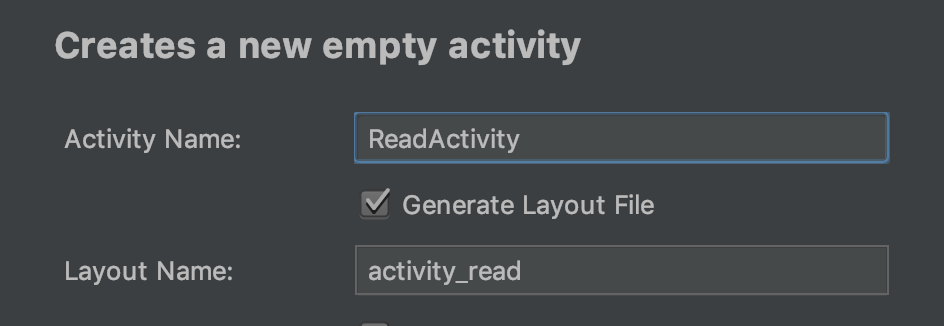
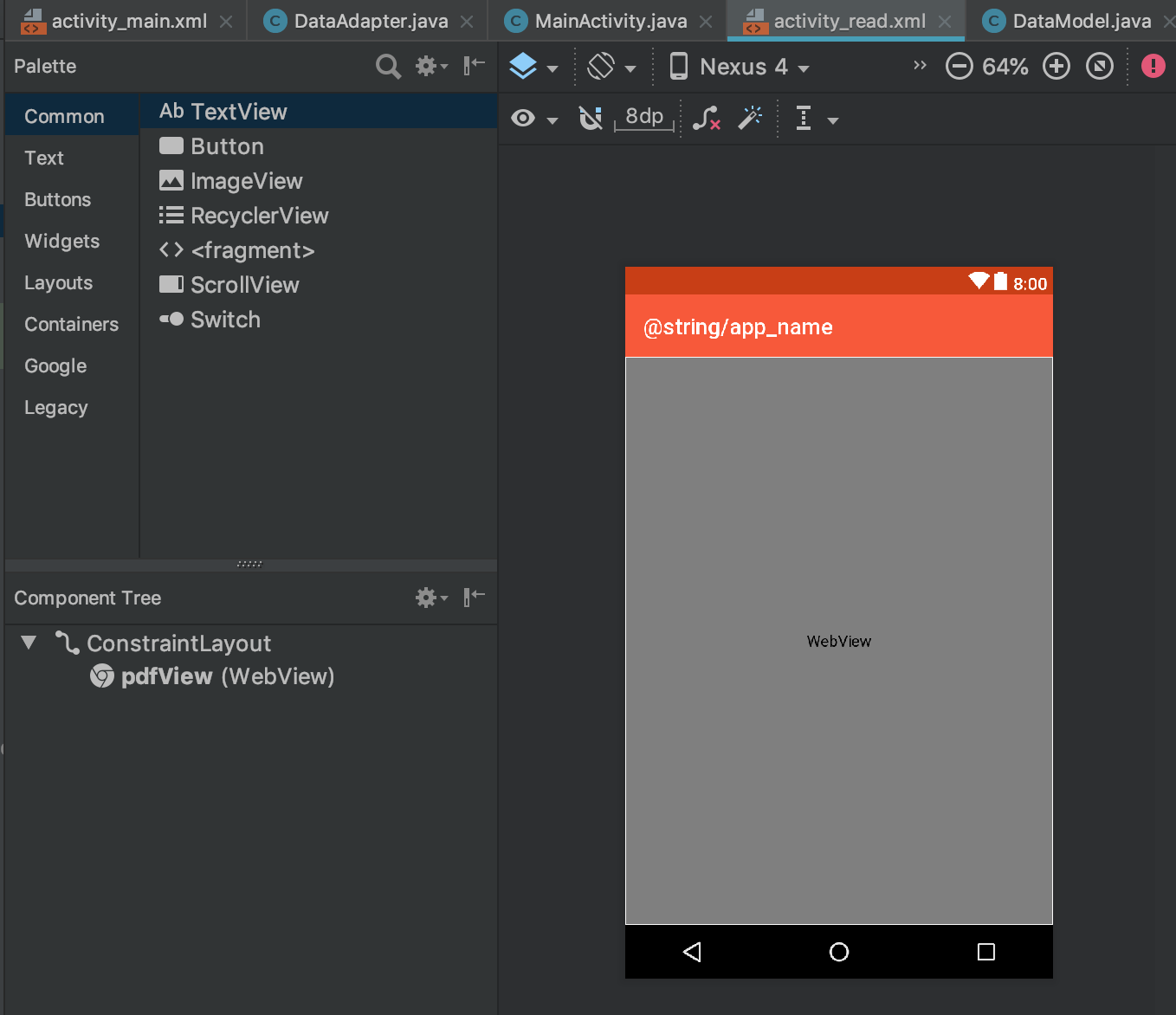
เปิดไฟล์ acivity_read.xml ขึ้นมาใส่ WebView เข้าไปตั้งชื่อ ID ว่า pdfView โครงสร้าง XML ดังนี้:
<?xml version="1.0" encoding="utf-8"?>
<android.support.constraint.ConstraintLayout xmlns:android="http://schemas.android.com/apk/res/android"
    xmlns:app="http://schemas.android.com/apk/res-auto"
    xmlns:tools="http://schemas.android.com/tools"
    android:layout_width="match_parent"
    android:layout_height="match_parent"
    tools:context=".ReadActivity">

    <WebView
        android:id="@+id/pdfView"
        android:layout_width="match_parent"
        android:layout_height="match_parent"
        android:layout_marginBottom="1dp"
        android:layout_marginEnd="1dp"
        android:layout_marginLeft="1dp"
        android:layout_marginRight="1dp"
        android:layout_marginStart="1dp"
        android:layout_marginTop="1dp"
        app:layout_constraintBottom_toBottomOf="parent"
        app:layout_constraintEnd_toEndOf="parent"
        app:layout_constraintStart_toStartOf="parent"
        app:layout_constraintTop_toTopOf="parent" />
</android.support.constraint.ConstraintLayout>
เปิดไฟล์ DataModel.java ขึ้นมา แก้ไขไฟล์จากเดิมคือ
import java.util.HashMap;
import java.util.Map;

public class DataModel {
    String title,desc,photos,key;
    public DataModel(){ }

    public DataModel(String title, String desc, String photos, String key) {
        this.title = title;
        this.desc = desc;
        this.photos = photos;
        this.key = key;
    }

    public Map<String, Object> toMap(){
        HashMap<String, Object> result = new HashMap<>();
        result.put("title",title);
        result.put("content",desc);
        result.put("photos",photos);
        result.put("key",key);
        return result;
    }
}
แก้ไขเป็น
import java.util.HashMap;
import java.util.Map;

public class DataModel {
    String title,desc,photos,key,files;
    public DataModel(){ }

    public DataModel(String title, String desc, String photos, String key, String files) {
        this.title = title;
        this.desc = desc;
        this.photos = photos;
        this.key = key;
        this.files = files;
    }

    public Map<String, Object> toMap(){
        HashMap<String, Object> result = new HashMap<>();
        result.put("title",title);
        result.put("content",desc);
        result.put("photos",photos);
        result.put("key",key);
        result.put("files",files);
        return result;
    }
}
เพิ่ม Key ของ files เข้าไปนั่นเอง หลังจากนั้นเปิดไฟล์ DataAdapter.java ขึ้นมา แก้ไขส่วนของ เมธอด onBindViewHolder() เพิ่มคำสั่งต่อไปนี้เข้าไป:
dataViewHolder.imageView.setOnClickListener(new View.OnClickListener() {
            @Override
            public void onClick(View v) {
                String filePath = dataModel.files;
                Log.d(TAG, "filePath=" + filePath);
                Intent readActivity = new Intent(v.getContext(),ReadActivity.class);
                readActivity.putExtra("filePath",filePath);
                readActivity.putExtra("title",dataModel.title);
                v.getContext().startActivity(readActivity);
            }
        });
เป็นการสร้าง Intent โดยส่งค่า files ที่เก็บอยู่ใน Firebase คือ Path ของไฟล์ PDF ไปผ่าน Intent ดังนั้นตรวจสอบไฟล์ DataAdapter.java ได้ดังนี้:
import android.content.Intent;
import android.support.annotation.NonNull;
import android.support.v7.widget.RecyclerView;
import android.util.Log;
import android.view.LayoutInflater;
import android.view.View;
import android.view.ViewGroup;
import android.widget.ImageView;
import android.widget.TextView;
import com.squareup.picasso.Picasso;

import java.util.List;

public class DataAdapter extends RecyclerView.Adapter<DataAdapter.DataViewHolder> {
    private static final String TAG = "FireComic";
    private List<DataModel> dataModelList;
    private DataModel dataModel;
    public DataAdapter(List<DataModel> result) {
        this.dataModelList = result;
    }

    @Override
    public DataAdapter.DataViewHolder onCreateViewHolder(ViewGroup viewGroup, int i) {
        return new DataViewHolder(LayoutInflater.from(viewGroup.getContext()).inflate(R.layout.content_read,viewGroup,false));
    }

    @Override
    public void onBindViewHolder(final DataViewHolder dataViewHolder, final int i) {
        dataModel = dataModelList.get(i);
        dataViewHolder.textTitle.setText(dataModel.title);

        Picasso.get().load(dataModel.photos)
                .error(R.mipmap.ic_launcher)
                .placeholder(R.mipmap.ic_launcher)
                .into(dataViewHolder.imageView);

        dataViewHolder.imageView.setOnClickListener(new View.OnClickListener() {
            @Override
            public void onClick(View v) {
                String filePath = dataModel.files;
                Log.d(TAG, "filePath=" + filePath);
                Intent readActivity = new Intent(v.getContext(),ReadActivity.class);
                readActivity.putExtra("filePath",filePath);
                readActivity.putExtra("title",dataModel.title);
                v.getContext().startActivity(readActivity);
            }
        });
    }

    @Override
    public int getItemCount() {
        return dataModelList.size();
    }

    public class DataViewHolder extends RecyclerView.ViewHolder {
        TextView textTitle;
        ImageView imageView;
        public DataViewHolder(final View itemView) {
            super(itemView);
            textTitle = itemView.findViewById(R.id.title);
            imageView = itemView.findViewById(R.id.thumbnail);
        }
    }
}
หลังจากนั้นให้เราไปเปิด ไฟล์คลาสของ ReadActivity.java ขึ้นมา ประกาศตัวแปร Global ดังนี้:
private WebView pdfView;
private String txt_file_path;
เพิ่มคำสั่งรับค่า Intent โดยเก็บ Parameter ไว้ในตัวแปร txt_file_path
Intent intent= getIntent();
        txt_file_path = intent.getStringExtra("filePath");
        pdfView = (WebView)findViewById(R.id.pdfView);

        pdfView.setVisibility(WebView.VISIBLE);
        WebSettings webSettings = pdfView.getSettings();
        webSettings.setJavaScriptEnabled(true);
        pdfView.loadUrl("https://docs.google.com/gview?embedded=true&url="+txt_file_path);
สำหรับ Basic PDF Reader นั้นให้เราใช้ Embedded API ของ Google Docs ต่อ Parameter เราก็จะได้วิธีการโหลด PDF ลงใน WebView ดังนั้นไฟล์ ReadActivity.java จะเป็นดังนี้:
import android.content.Intent;
import android.support.v7.app.AppCompatActivity;
import android.os.Bundle;
import android.webkit.WebSettings;
import android.webkit.WebView;

public class ReadActivity extends AppCompatActivity {
    private WebView pdfView;
    private String txt_file_path;
    @Override
    protected void onCreate(Bundle savedInstanceState) {
        super.onCreate(savedInstanceState);
        setContentView(R.layout.activity_read);

        Intent intent= getIntent();
        txt_file_path = intent.getStringExtra("filePath");
        pdfView = (WebView)findViewById(R.id.pdfView);

        pdfView.setVisibility(WebView.VISIBLE);
        WebSettings webSettings = pdfView.getSettings();
        webSettings.setJavaScriptEnabled(true);
        pdfView.loadUrl("https://docs.google.com/gview?embedded=true&url="+txt_file_path);
    }
}
ทดสอบแอปพลิเคชันของเราหน่อยดีกว่า:
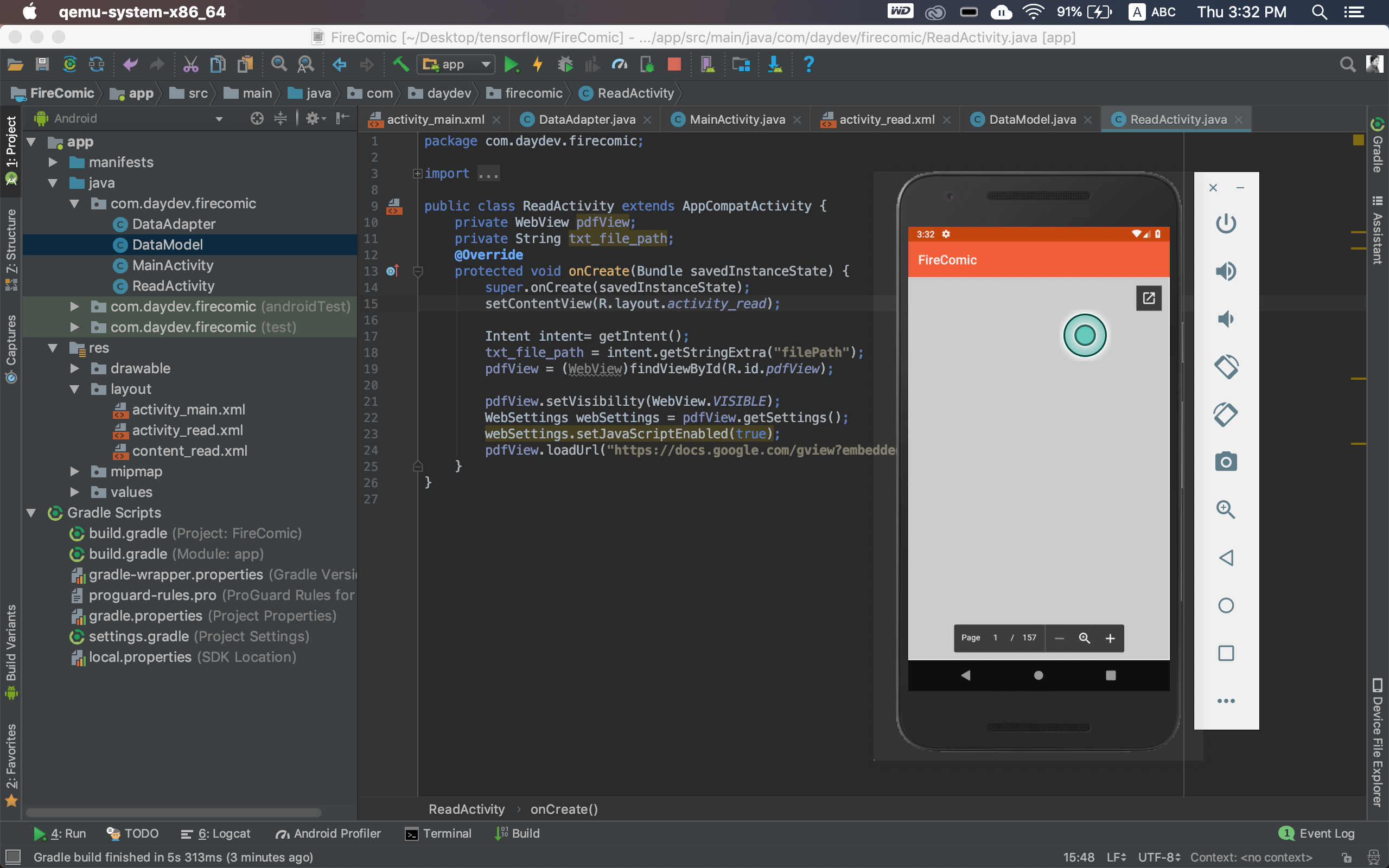
รันแอปพลิเคชันแล้วจะมีการโหลดประมาณนี้เมื่อมีการเปลี่ยนหน้า:
เรียบร้อยแล้ว !!! แอปพลิเคชัน Comic E-Book ของเราแบบง่ายๆ สำหรับอ่าน PDF ด้วย android และ Firebase